📈 Buy Tokens
FAQ
How can I customize my gas settings?
In our Telegram bot you can choose between auto gas or custom gas. Check our Custom Gas page for more details.
Interface
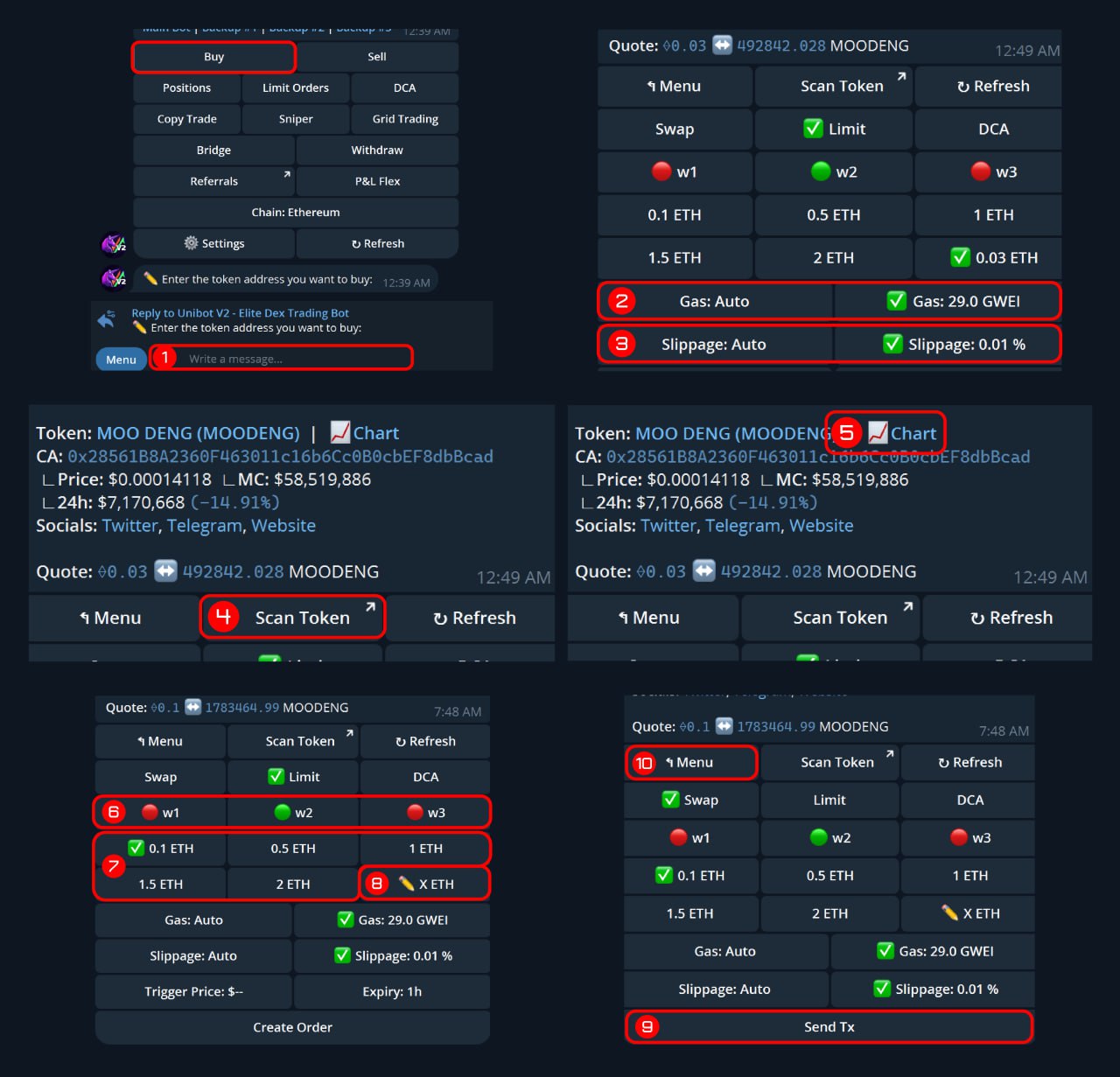
Buy Tokens
Transactions are sent privately by default.
- Enter Token Address - Enter the address of the token you want to buy in the chat bar.
- Gas Settings - Choose between auto gas or customizable gas that best suits your trading strategy.
- Slippage Settings - Choose between auto slippage or custom slippage (0.01%-50%) based on your trading needs.
- Scan Token - Check the audit of the token you wish to buy/sell to see whether it is a honeypot, has a buy/sell tax, liquidity pool lock, freezable trading, etc.
- View Chart - Click 'Chart' to see the token's real-time price action
- Select Wallets - Choose which wallets you want to buy with. You can enable multiple wallets to buy with many at once.
- Buy Amount - Choose from preset ETH amounts to buy with, or enter a custom amount.
- Custom Buy Amount - Click the button once to enable it, then click the button again to enter your custom value.
- Send Tx - Submits the buy transaction. (See the photo below to view an example.)
- Main Menu - Returns you to the main menu upon clicking.
.png)
Buy is executed after clicking 'Send Tx'
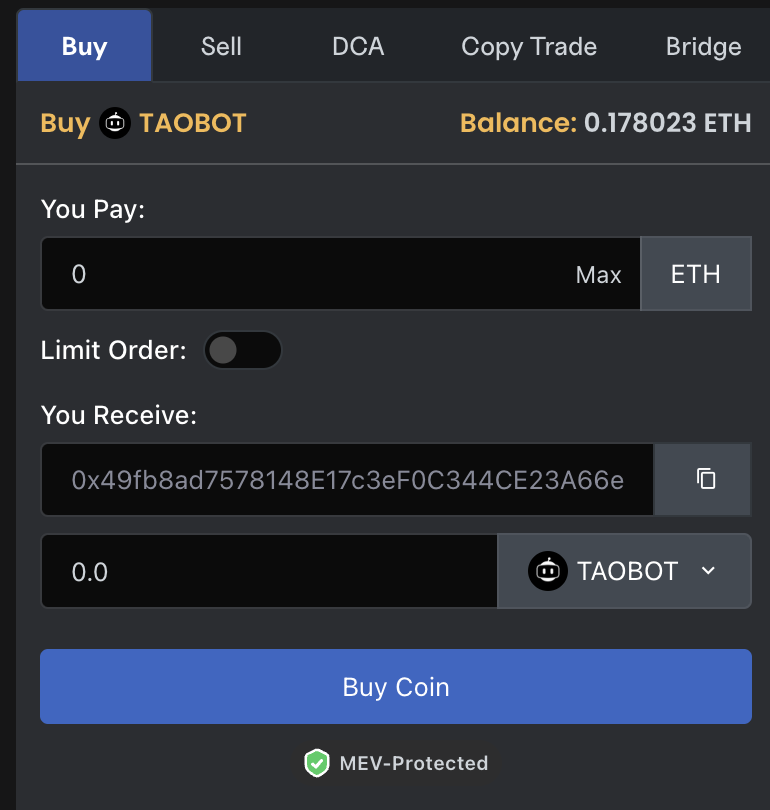
Buy panel
- You Pay - The amount of ETH you would like to swap for your prospective token. Upon entering, the transaction will be simulated to estimate the amount of tokens you will receive.
- You Receive - The address of the token you are buying.
- Buy Coin - Click the button to submit your transaction.
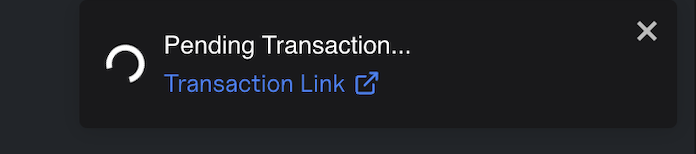
Buy transaction pending
- Pending Transaction - A notification will be shown in the bottom left-hand corner of your screen when the transaction is broadcast.
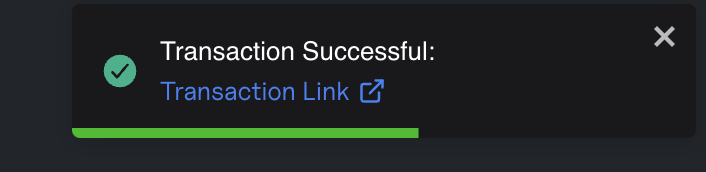
Buy transaction successful
- Transaction Successful - A notification will be shown in the bottom left-hand corner of your screen when the transaction goes through. You can click transaction link to view the details on Etherscan.